
What's New in Blackboard – February 2026
This month's Blackboard update introduces thoughtful improvements to help you design engaging course content, stay connected with students, and recognize their achievements.
Below we've highlighted four features that make a real difference in day-to-day teaching and learning while ensuring usability remains front and center for all users.
For a full list of updates from the February 2026 release, including those for administrators, visit the Blackboard Help Site.
1. Automatically Remind Students to Check Their Feedback
Image 1: The Automation gallery now includes Send feedback reminder.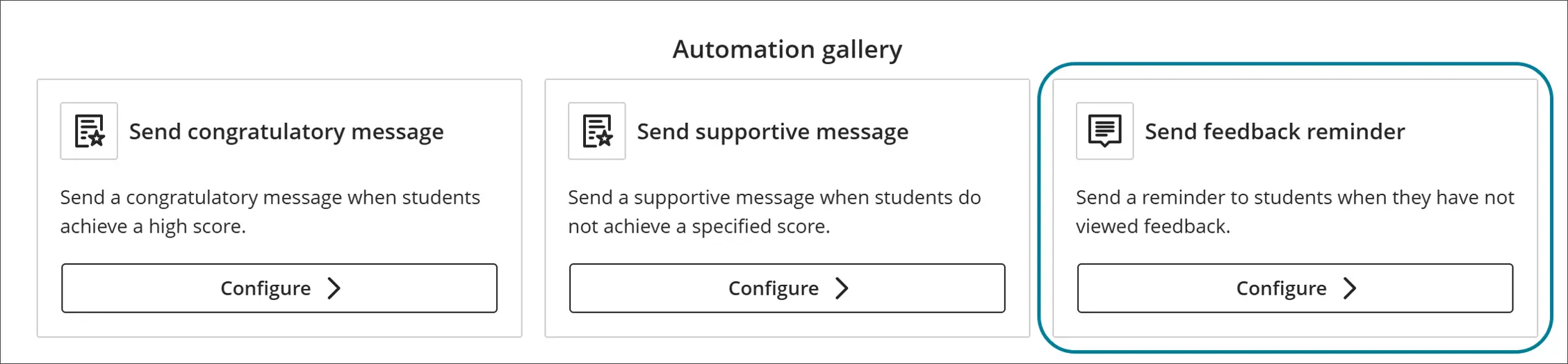
Image 2: The Automation trigger includes a dropdown menu for the number of unread days.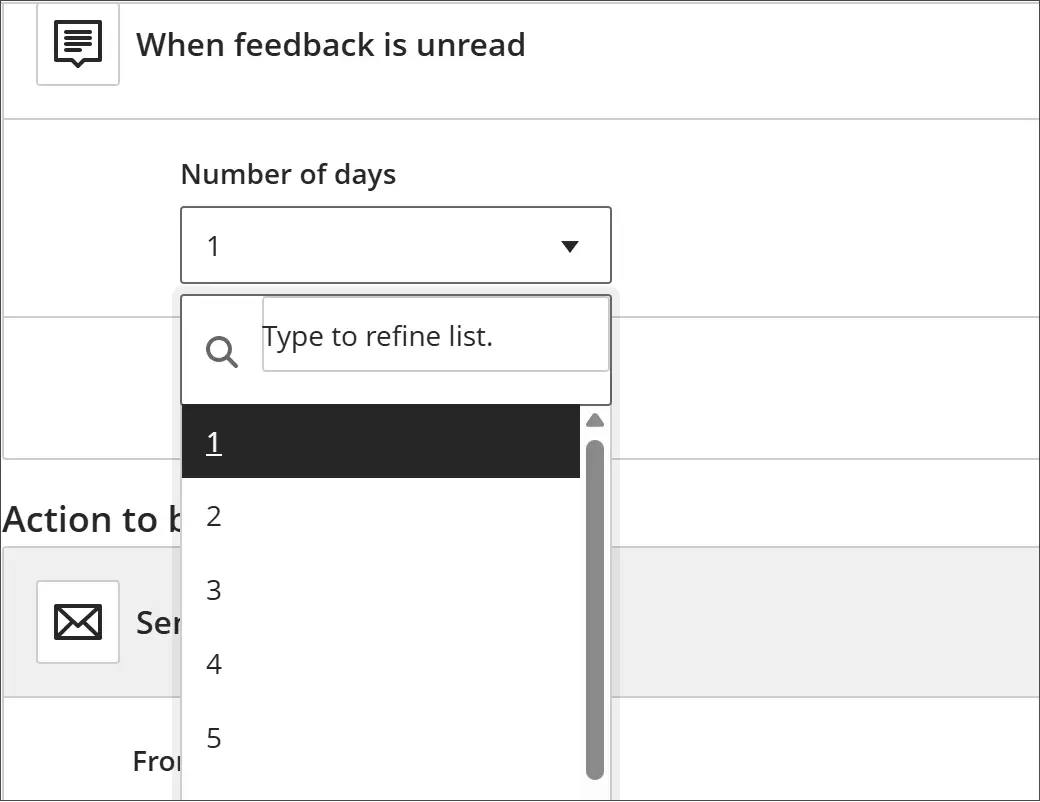
Who it helps: Instructors and Students
You've graded the assignment, left detailed feedback, and then...crickets. It’s frustrating, but students don't always check back to see what you wrote, so this release adds a new automation that nudges students when feedback sits unread.
What's new:
In the Automations gallery, you'll now see Send feedback reminder as an option. When you set it up, you can choose how many days feedback can remain unread before Blackboard sends a reminder message. The system provides a default message, but this can be customized to match your tone and the culture of the course.
Once the automation is active, students who haven't opened the feedback will receive the reminder automatically—no extra work on your end. It's a simple way to keep students engaged with their progress and ensure your feedback gets read.
Note: Your institution needs to have Automations enabled to access this capability.
2. Stack Content Blocks Vertically in Documents
Image 1: Instructors can stack blocks in a single column, such as next to an image in a column.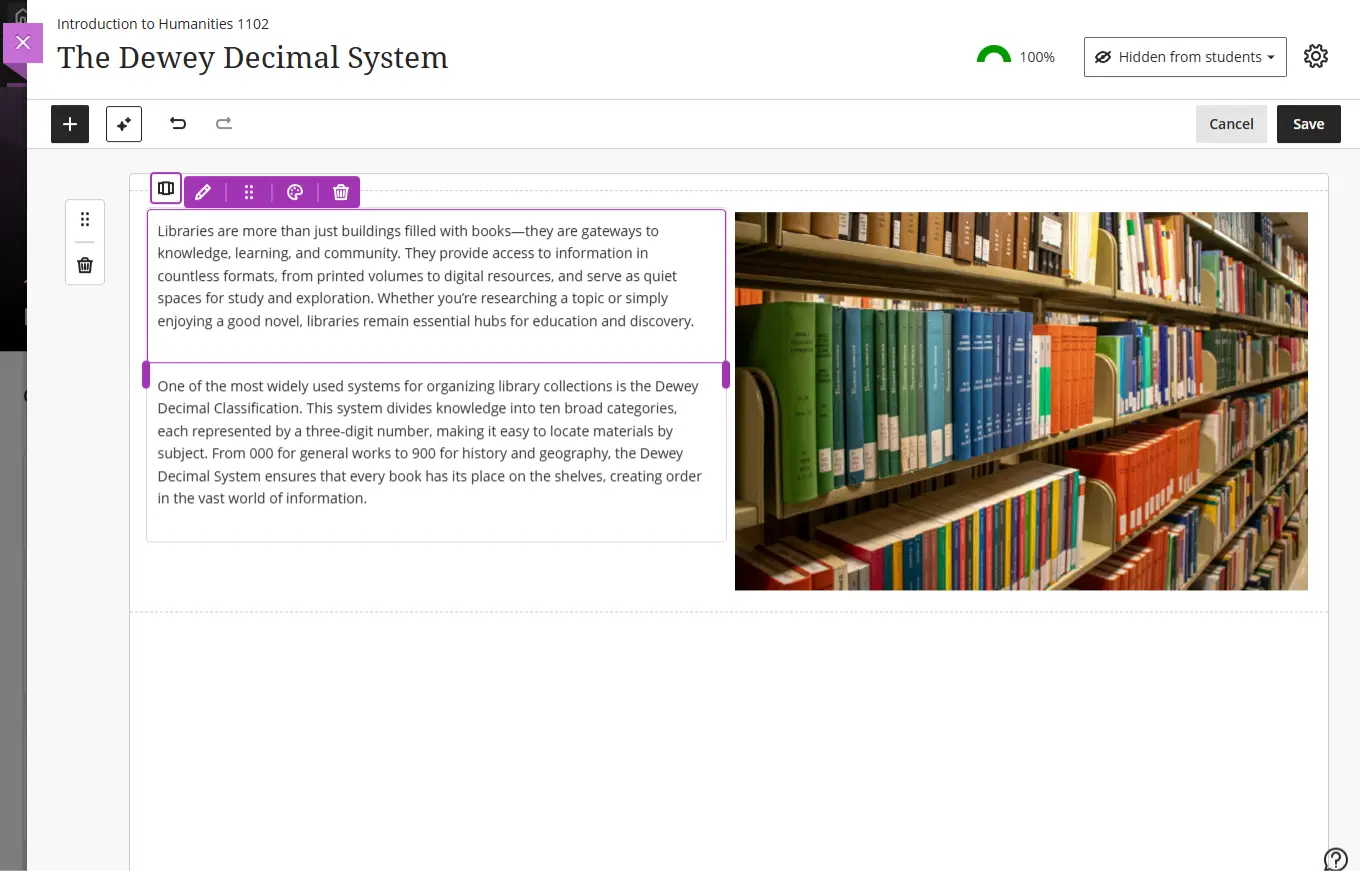
Who it helps: Instructors
If you've ever fought with excessive whitespace in a Blackboard Document or struggled to create a clean two-column layout combining images and tall blocks of text, this update is for you.
What's new:
You can now stack multiple content blocks in a single column. This means you can place an image in one column and stack several text blocks (or a mix of text, video embeds, and knowledge checks) in the column beside it, without the gaps and white space that used to appear.
A new toggle in the block toolbar lets you switch between column-level editing (where actions apply to the whole column) and block-level editing (where you can resize, move, or delete individual blocks). You can even drag a column into another block's area for more flexible layouts.
This works with all the existing features you already use: undo/redo, printing, layouts generated with the AI Design Assistant, and includes accessibility improvements for screen readers, too.
3. Better Badges: Enhanced Achievements Experience
Image 1: In the student view, the Achievements tab displays a count of unread badges, and the new badges have a “New” pill.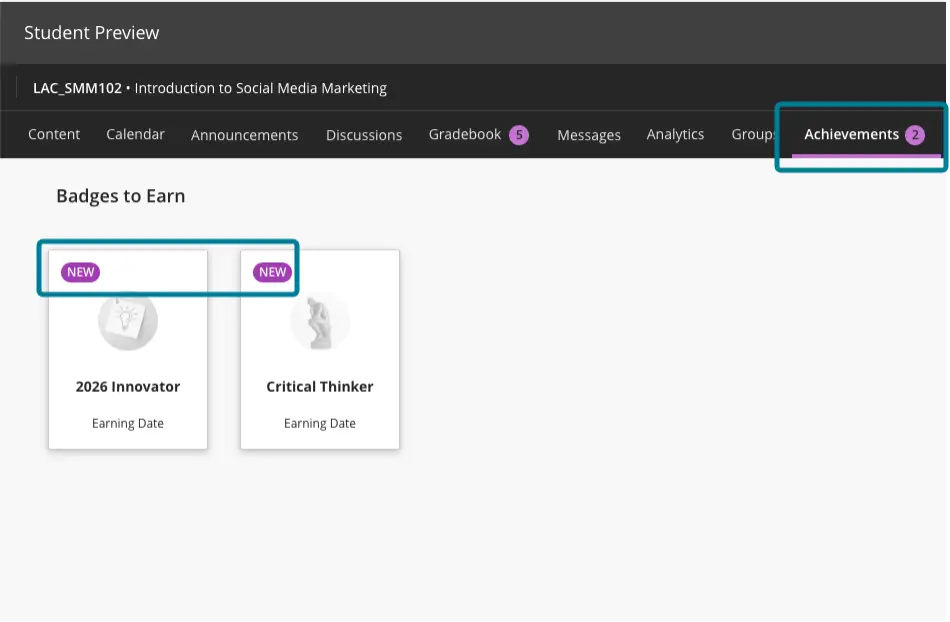
Who it helps: Students and Instructors
The Achievements feature just got clearer and easier to use.
What’s new:
For Instructors:
Creating and awarding badges is now more intuitive, with clearer wording and better visual distinction between badge types.
Accessibility improvements include updated aria-labels and alt-text throughout, plus styling changes that stop forcing badge images into round shapes (OpenBadge images now display as intended).
For Students:
- The Achievements tab now shows a count of unread badges right on the tab itself, so students know immediately if they've earned something new.
- New badges are consistently marked with a "New" indicator in both the Earned and To Earn sections.
- Course Badges and Open Badges are also easier to tell apart, with improved labels, icons, and descriptions.
4. Improved Accessibility for Custom Badges
Who it helps: Instructors and Students
Building on the Achievements improvements, this release makes custom badge creation and viewing more accessible for everyone.
What’s new:
- Screen readers now provide clearer descriptions for buttons and image previews in the badge creation workflow.
- Tooltips have been added to buttons to give more context at a glance.
- Decorative images are now properly marked as decorative, and fallback alt-text is provided for custom badge images.
- Aria-labels and alt-text are now consistent across all views, whether you're creating, awarding, or viewing a badge.
Questions or Feedback?
For full technical details on this release, including several admin-focused features we didn't cover here, read the full release notes on the new Blackboard Help site.
As always, if you have feedback on any of these updates, let us know! Join the Blackboard Community to join the discussion, or check out the Idea Exchange, where you can share your ideas for new features or improvements, vote for the ideas of others, get updates on feature development and more.